



Makeen Andro
Andrology and IUI laboratory
Manage andrology tests, IUI preparation, sperm cryostorage and follow-up of IUI outcomes.
No matching features. Try a procedure name or its abbreviation.
Patient files and review
Patient and partner files
Search by name, file number or identity details before opening a new file. Enter a birth date or year and contact details, then link an existing or new partner file. Either file provides access to the other partner and their recorded procedures, subject to permissions.
Review and approval
Save a test report as a draft during entry and submit it for review when complete. An authorised user can approve the report or reopen it with a recorded reason. The laboratory day board shows procedures for a selected date and older unfinished cases, searchable by name or file and filterable by the responsible staff member.
Andrology examinations
Semen analysis
Enter the abstinence interval, collection method, collection and examination times. The macroscopic section covers volume, colour, viscosity and liquefaction. Microscopic findings include concentration, progressive and non-progressive motility and normal morphology, alongside calculated totals. A linked sperm freezing entry can be started directly from this examination.
Low-count findings
When a numeric concentration is unavailable, record the observation as rare sperm, below a measurement limit or none seen, as applicable. The report retains the description. Motility and morphology can be entered according to what was assessable in the sample.
Sperm DNA fragmentation
Enter the number of sperm assessed and the number showing fragmentation to calculate DFI. The record links the result to the patient and examination date. Reopen it to print the report or include the counts in laboratory analysis.
FNA and TESE records
Record the procedure, physician, anaesthesia, sample counts from each side and sperm search findings. Keep a record even if no material was frozen. Separate freezing entry routes identify material obtained by FNA or TESE.
The IUI cycle
Case setup and treatment history
Open an IUI case and select the patient, partner, procedure date and physician. Record years of marriage, number of children and previous attempts when available. A distinct case number connects the preparation report and later follow-up to the correct cycle.
IUI sample preparation
Select both partners, record the pre-preparation findings and add a second specimen if used. Enter the preparation method, post-preparation volume, concentration and motility, and identify the physician, operator and witness. The case report presents the pre- and post-preparation findings.
The preparation report
Review each initial sample and the preparation method alongside final volume, concentration and progressive and non-progressive motility. The reviewer can reopen the case from the IUI register to check the results, notes and responsible staff.
Sperm cryobank
Sperm cryopreservation
Open a batch for an ejaculate, an FNA or TESE specimen, or material received from another centre. Record the date, vial count, location and freezing operator. An already-frozen batch can also be added to the register. Each batch keeps its original quantity beside the number of vials still in storage.
Tank, can and sleeve
Build a location tree to match the laboratory’s physical layout. Set the number of cans in each tank and sleeves in each can, the permitted specimen type and the capacity where known. Select the same registered location when entering a straw or batch of vials.
Specimen actions and balances
Open a batch to record use, transfer to another centre or disposal, with the date, quantity and reason. The action updates the balance and remains in the history. Eligible actions can be reversed with a recorded reason and the corresponding quantity restored.
Storage renewals
Renewal accounts group a patient’s batches by specimen type and storage period. Review the years due, record a renewal against the relevant year, then revisit paid years, outstanding renewals and the end date of a closed storage period.
Pregnancy outcomes and study variables
Finding the IUI cycle
Open Pregnancy Outcomes from Home. Search for either partner, a file or case number, or filter by procedure date to find the IUI cycles of interest. Open the cycle to see its existing visits and add a new dated follow-up.
From pregnancy test to delivery
Add a dated visit with notes and an optional attachment. Enter the pregnancy test result, β-hCG value and unit. A pregnancy can then be followed through sac and heartbeat counts, stability, losses, individual fetal sex, delivery mode and the number and sex of the newborns.
Define a variable and assign cases
Name the procedure, material or medication under study. Filter or search for cases, select one or several, then document use or non-use with a date and notes. You may also define a numeric outcome, give it a name and specify its unit.
Compare the two groups
View results for documented use alongside documented non-use, with the number of cases contributing to each indicator. A custom numeric outcome shows group means and the number measured. Cases with an unrecorded use status are counted separately.
Andrology indicators and patient reports
Concentration, motility and DFI
The analytics dashboard shows mean concentration, progressive motility, post-IUI-preparation progressive motility and weighted DFI from the total fragmented and counted sperm. Each indicator includes its eligible, complete and missing record counts.
IUI outcomes and team workload
View a month or custom date range and review procedure counts by staff member and recorded role. IUI outcomes include documented positive tests, clinical pregnancies and live births, with eligible cycles and follow-up coverage. Export detail tables to Excel or CSV.
Laboratory reports and 19 worksheets
Open the case report, or select a blank or patient-linked worksheet from the document centre. Templates include vitality, post-ejaculatory urine, fructose, antisperm antibodies, oxidative stress, hormones and genetics, as well as IUI preparation, freezing and test requests.
Sample identity and laboratory settings
Sample identity and label history
Find the patient or procedure record, select the label and container type, then generate and print the label. Reopen it by code or compare source and destination codes to check their record links. The check history shows the result, operator and time.
People and access permissions
Open Settings after Sample ID to manage physicians, employees and user accounts. Assign responsibility for viewing, editing, approving, printing and exporting records, and control access to storage-location and centre settings.
Backups and institution branding
Choose an external backup folder and password, run a backup manually or enable daily backups while the application is running. Review the backup details before restoration. Institution settings control the bilingual centre and unit names, logo, report header and footer.
Workstation configurations
Use Standalone on a single computer, or the Clients edition to connect centre workstations to their host. In a centre setup the workstations connect to the shared centre data, and each staff member accesses records through their own account and permissions.
Inside the workspace
All screenshots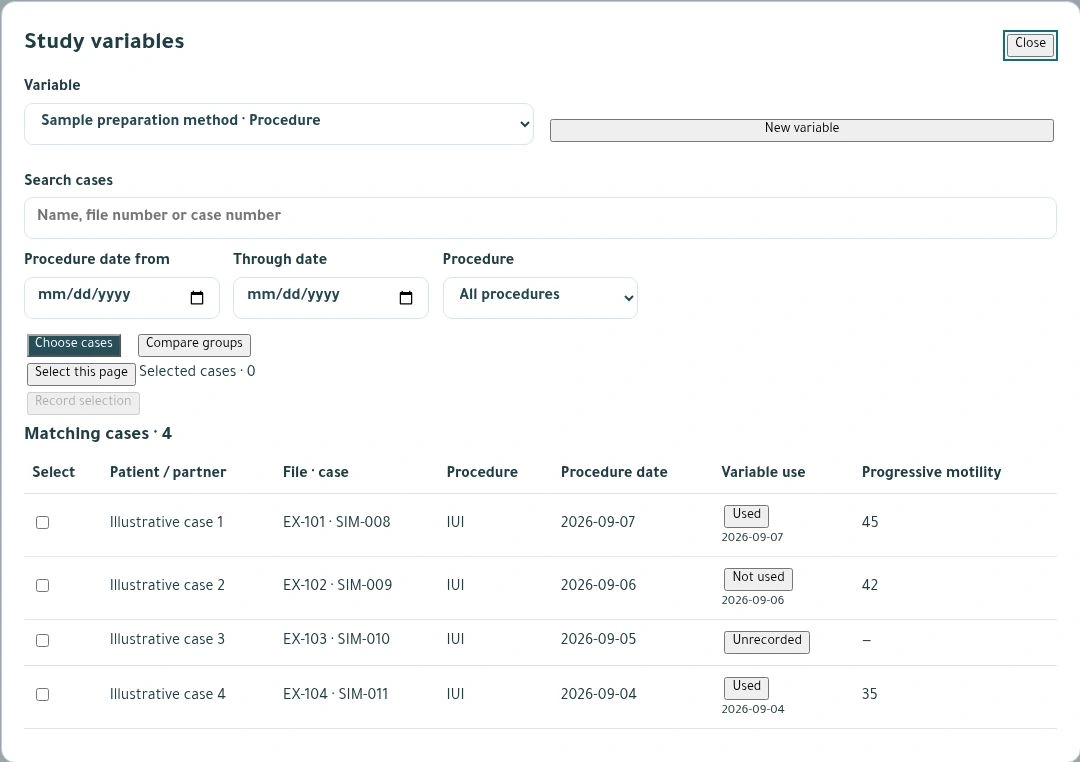
Study variables in IUI cases
Select IUI cycles and record material or procedure use for each group.
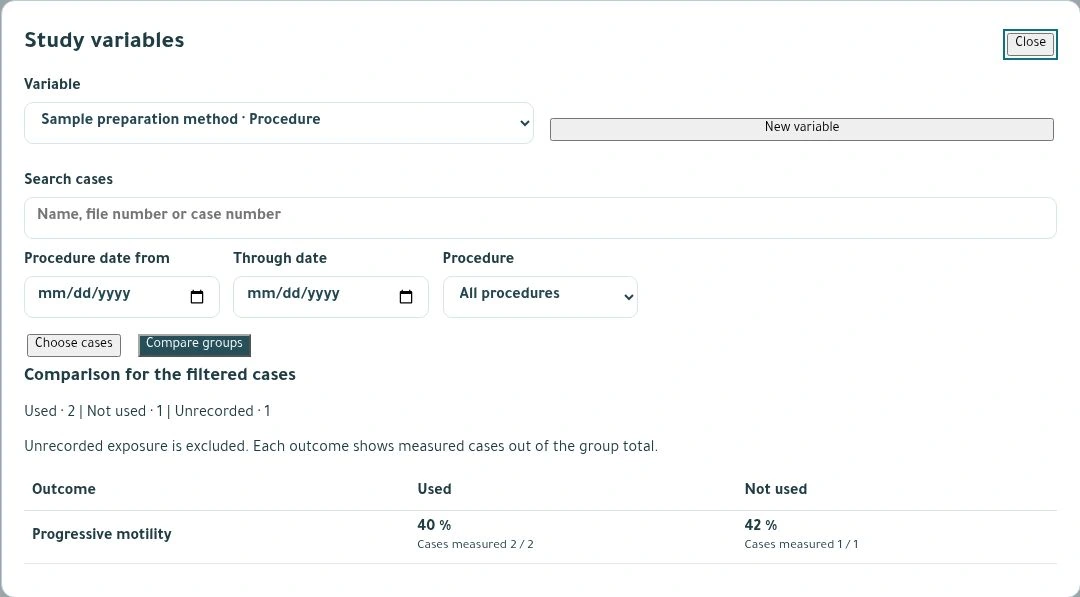
Cohort comparison
Compare documented outcomes alongside the number of cycles with measurements.
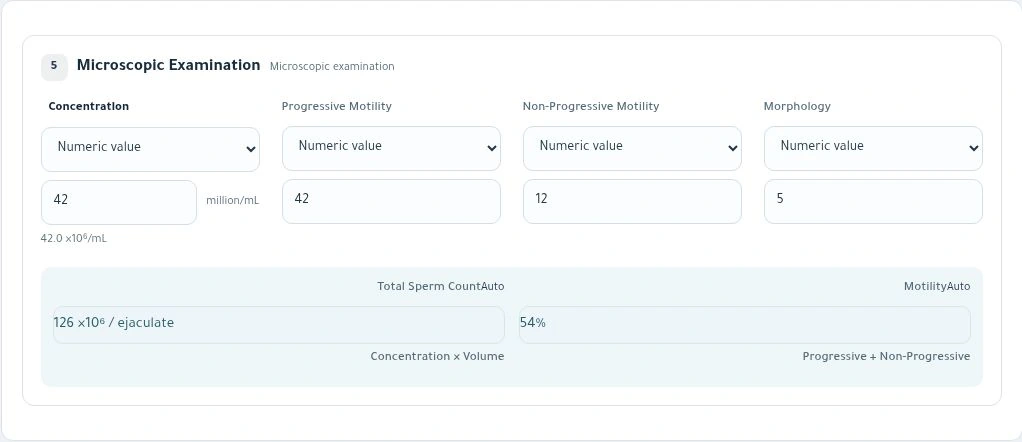
Microscopic semen examination
Record concentration, motility and normal forms, and review the calculated total count and total motility.
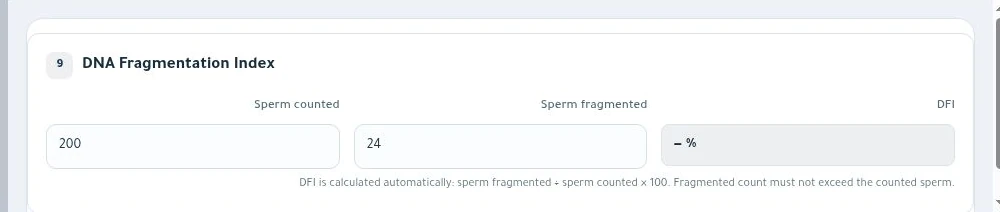
Sperm DNA fragmentation
Enter counted and fragmented sperm to calculate the DFI.
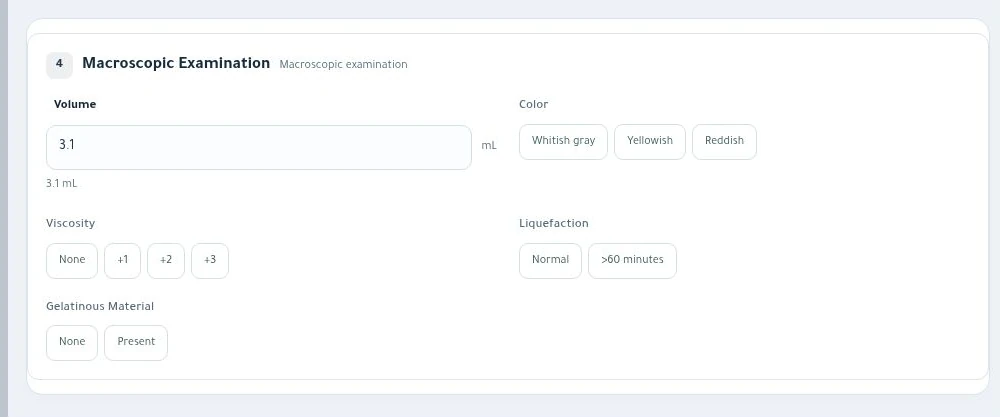
Macroscopic semen examination
Record sample volume, colour, viscosity and liquefaction.
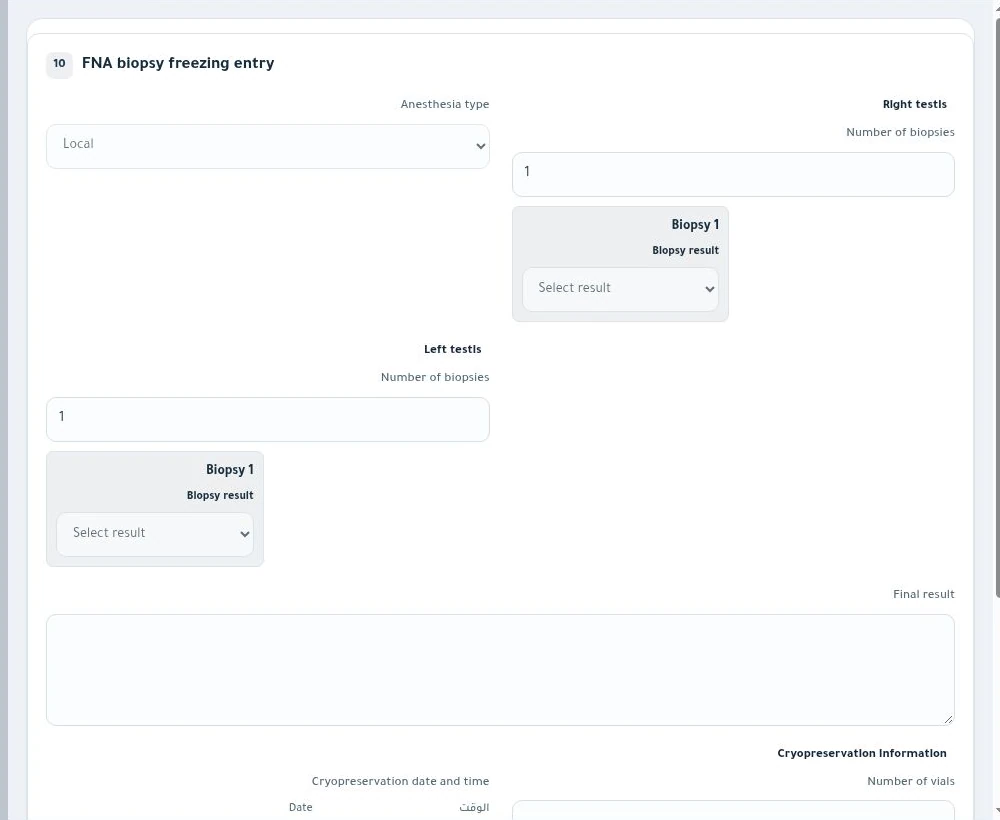
Testicular aspiration
Document anaesthesia, sampling by side and freezing details.
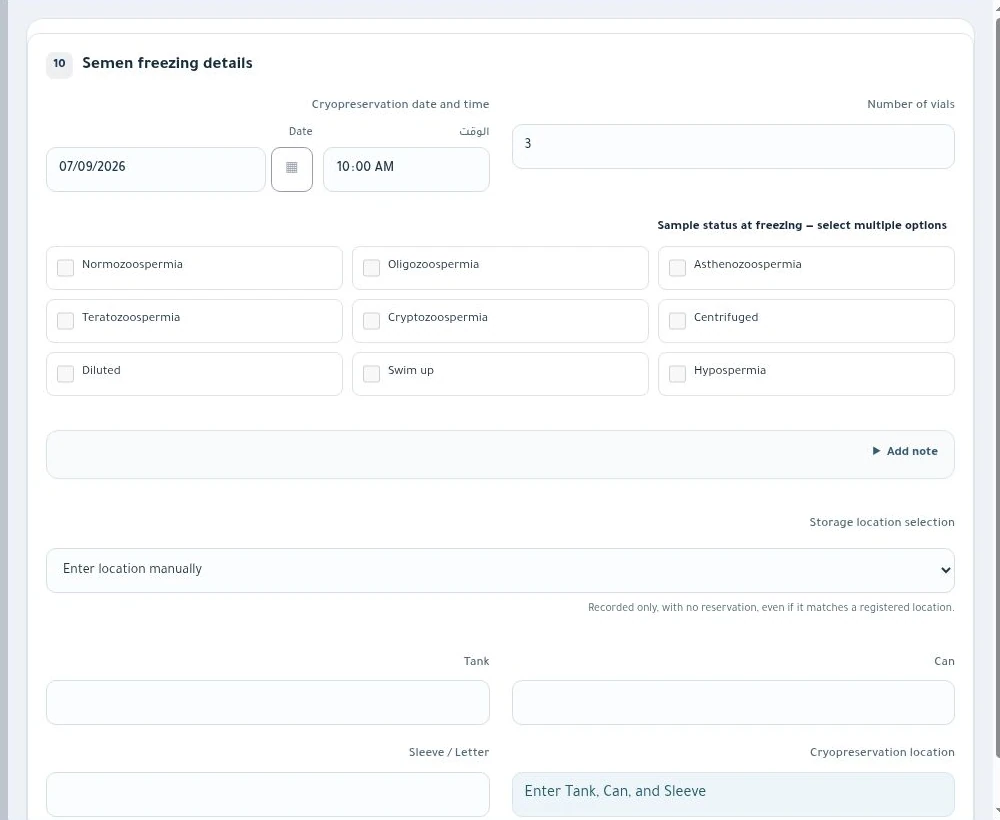
Sperm freezing entry
Record the freezing date, vial count, sample condition and storage location.
Catalogue Makeen Andro
Save a reference copy for your laboratory team in either language.